Installing ReShade for Roblox may seem complicated, but in reality, the process is quite simple if you follow the instructions step by step. Before you begin, you need to download the archive with shaders in advance—this is a set of effects that you can later use within the program. After downloading, do not open the archive yet and proceed with the preparatory steps.
First, you need to find the Roblox root folder so that ReShade can locate the game’s executable file. The easiest way to do this is to go to the location of the shortcut. Open the Start menu or find the Roblox icon on your desktop. Right-click on it and select “Go to file location.” A system folder will open where the Roblox shortcut is located. If this happens, right-click on the shortcut itself and select “Go to file location” again. Now you will find yourself in the actual root directory of the game, where the RobloxPlayerBeta.exe file is located. This is the folder you need.
When the desired directory opens, select the address bar in the explorer. Right-click on it and select “Copy.” You will need this path later to specify the correct location of the Roblox executable file to the ReShade installer. After that, go back to the downloaded archive with the shaders, unzip it into a convenient folder, and run the installation file by double-clicking on it.
After launching ReShade, it will offer a list of games, but you don’t need to select anything from it. Immediately click the “Browse” button. In the search field, paste the previously copied path to the Roblox folder. When it opens, select the RobloxPlayerBeta.exe file. This confirms that ReShade should work specifically with the Roblox client. Next, a window for selecting a graphics library will appear. Four options will be offered: DirectX 9, DirectX 10–12, OpenGL, and Vulkan. Roblox uses OpenGL in the context of ReShade, so you need to select it and click “Next.”
After that, the program will offer to install one of the presets or skip the step. It is better to click “Skip” to select the desired shader libraries yourself. In the menu that appears, you will see a list of available effect packages. To access all of ReShade’s features, you can check all the boxes. This will allow you to experiment with a large number of filters and visual enhancements in the future.
Once you have made your selection, click “Next” and wait for all packages to finish downloading. The process may take some time depending on your internet speed and the number of shaders selected. Once finished, the installation will be complete and you can close the window. At this point, the ReShade installation is considered successful.
To check if the program is working, launch any mode in Roblox. Go to the platform’s website, select a game, and click the launch button. Confirm that the application has opened. Once Roblox has loaded, you will see the ReShade interface at the top of the screen. This confirms that the modification has been installed correctly. When you first launch the program, it will offer a short tutorial that you can read or skip.
Next, you can move on to configuring the effects. Open the ReShade menu with the Home key or the one specified in the tips. You will see a list of filters. To enable the desired shaders, check the boxes next to their names. Each effect can be customized manually — you can change the intensity, color, brightness, blur, and other parameters. After enabling or disabling effects, it is recommended to press the “Reload” button so that ReShade updates the configuration and applies the changes.
When working with ReShade, it is important to select effects carefully so as not to reduce performance. Some filters, such as depth of field or enhanced shadows, can put a strain on the graphics card. But most color and lighting effects work smoothly and have almost no effect on FPS.
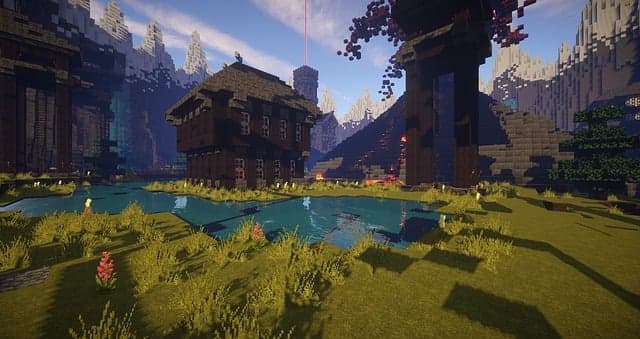
Once you’re done with the settings, you can jump right into the game or start taking cool screenshots. ReShade lets you really improve the visuals in Roblox, making the image brighter, cleaner, and more expressive. Thanks to its flexibility and wide range of effects, you can create your own graphics style that totally fits your preferences.