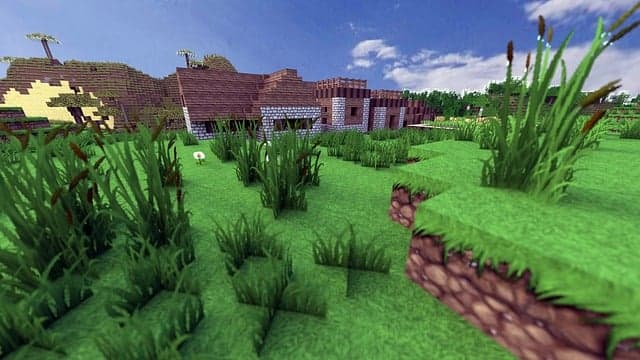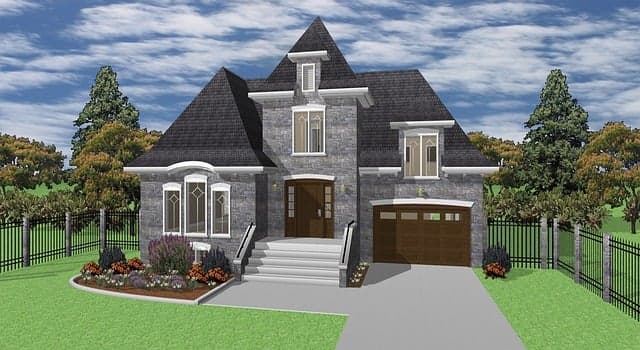
It’s no secret that Roblox’s aesthetics and graphics often fall short compared to most other video games, including popular AAA titles, which use various layers of texture, lighting, and shading to make them look as realistic as possible. In most cases, however, Roblox developers use this lack of LEGO-like design to their advantage, creating charming, colorful worlds that appeal to younger audiences because they resemble the plasticity of toys and the silliness of cartoons. Although this design style is the most popular on the platform, there are Roblox developers who use typical to create impressively realistic designs — this is where RoShade comes into play.
What are shaders?
A shader is a computer program that is typically used to add texture to an object and its surroundings. In this case, shaders are used to add depth and make video games look more realistic. Shaders can help add shadows, reflections, shine, bumps, grooves, etc. Virtually any texture or aspect of the environment you can think of can be integrated and controlled with a shader.
Are shaders allowed in Roblox?
At the time of this article’s publication, there are currently no rules in Roblox’s Terms of Service prohibiting the use of shaders. It is unknown if this will change in the future, but as of December 8, 2021, shaders can be installed and used by Roblox players without fear of being banned.
What do shaders do in Roblox?
Have you ever played Roblox and thought it would look much cooler if it had better graphics? That’s what shaders are for! Once you install and use shaders in Roblox, the graphics of every experience you play will be enhanced to look as realistic as possible.
Installing and using RoShade
RoShade offers users various packs that they can install and try out, including the basic pack, the glossy pack, and perhaps the most popular pack, Zeal’s. Zeal is a Roblox YouTube designer and engineering student who has worked with RoShade for many years to perfect his easy-to-use and impressive shader pack. The basic pack and glossy pack can be downloaded from the RoShade main website, and the Zeal pack can be installed from the side link.
To install and use any of these packs, follow the steps below.
- Go to the RoShade website and click the download button to select whichever shader package you prefer.
- When the next window opens, click the download button again.
- Once the program has finished downloading, a pop-up menu will appear asking if you want to open the file or save it — click
Save File and then click OK
Find the file you just saved on your PC.
- Most likely, it was saved in your Downloads folder or on your desktop.
- Open the file.
- Select RoShade setup.exe.
- Click the Run option from the pop-up window.
- After clicking Run, another pop-up window will appear asking you to select the installation mode — select the recommended option
- In the .exe installation window, click Next, then select I accept the terms of the agreement option, then click Next, and finally click Install
- Once the installation is complete, another pop-up window will appear — click OK
- Open Roblox and log into any experience
- RoShade shaders are now enabled!
The keyboard shortcuts for RoShade can be found below.
- F8 — Toggle effects
- F7 — Toggle menu
- Page Up — Next preset
- Scroll Down — Previous preset
- Screenshot — Take a screenshot
- Related: Roblox developers warn against downloading malicious plugins
ReShade
If you’ve tried the packs mentioned above and are looking for even more shader pack options, ReShade can be a great resource for finding a multitude of incredibly detailed packs uploaded by different users. The packs on this website are regularly updated and cover various Roblox features and even other video games outside of Roblox.